
You want a quick, honest list
Startup is fast; type-to-search helps you find an app in large software collections without digging through Settings.
Windows uninstaller: portable & free
Geek Uninstaller is a lightweight, single-file tool for Windows that lists installed programs fast, removes them with a deep leftover scan, and can force-remove broken entries. This guide explains what it does, how people use it in real life, and how to fix common issues so you can decide confidently and get unstuck quickly.
Always verify downloads from a source you trust.
Download
Get the latest official build from a source you trust. Here is what Geek Uninstaller gives you on Windows before you download.
This guide does not host the installer. Grab the portable EXE from a verified publisher or mirror you trust, then follow How it works for first-run tips.
Random third-party repacks are not linked here on purpose. Stick to sources you can verify.
Home
Windows can uninstall apps, but many installers scatter files across ProgramData, AppData, and the registry. Geek Uninstaller focuses on fast discovery, standard or forced removal, and a post-uninstall scan to catch leftovers. It is portable (one EXE), supports 32- and 64-bit Windows, and includes Microsoft Store apps on supported versions.
Unlike bloated uninstallers that add system hooks or require installation, Geek Uninstaller runs as a standalone executable. You can drop it on a USB stick, run it from a network share, or keep it in a tools folder. The interface stays lean: a searchable list of programs, context menus for uninstall or force remove, and a post-uninstall scan that hunts down orphaned files and registry keys in known locations.
The leftover scan targets common paths: Program Files, Program Files (x86), ProgramData, AppData (Local and Roaming), and relevant registry branches. It does not perform a full-disk scan; that would be slow and risky. Instead, it focuses on locations where installers typically leave remnants. You can review each detected item and uncheck anything you want to keep. The tool supports both 32-bit and 64-bit applications and can list Microsoft Store (UWP) apps on Windows 8 and later when you switch views.
Windows Settings and the classic Control Panel list programs, but they rarely help you understand what is left behind after a failed or partial uninstall. Geek Uninstaller bridges that gap: it shows the same programs you expect, but adds a focused cleanup pass and a way to remove entries when the official uninstaller is broken or missing.
This site is an independent reader’s guide, use it alongside the official program documentation. Always prefer the vendor’s uninstaller when it works; use force removal and leftover deletion only when you understand what you are removing, especially on shared or work computers.
1 EXE
Portable, no install
Win 7–11
32 & 64-bit
Store
UWP apps view
40+
Interface languages
Startup is fast; type-to-search helps you find an app in large software collections without digging through Settings.
Force removal is for stubborn or half-removed programs where the vendor installer fails or disappears from Add/Remove Programs incorrectly.
The leftover scan targets common junk locations after a normal uninstall, useful after trial software, game launchers, or old AV suites.
The portable EXE works without installation. Copy it to a USB drive and run it on any Windows machine for consistent cleanup workflows.
Switch to Store apps view to uninstall UWP apps that are hard to remove via Windows Settings or PowerShell.
No background services, no startup entries, no extra DLLs. Run it when needed and close it when done.
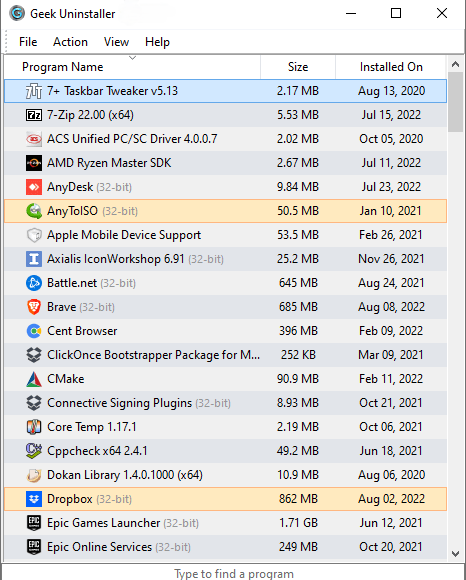
The Size column shows how much each program uses. Sort by size to target large apps first, then run leftover scans after uninstalls to reclaim caches and config folders.
No dashboards, no upsells, no “boost” buttons, just a list, search, and context menus. Light and dark themes are available from the View menu.
For detailed steps, keyboard shortcuts, and safety tips, see How it works and Tips.
Features
These capabilities match what the official Geek Uninstaller site describes, summarized here for clarity and search-friendly structure. Each feature is designed for real-world use: quick scans, clean removals, and minimal system impact.

Runs a deep, fast scan after the standard uninstaller finishes to remove residual files and registry entries when safe to do so.

For programs that refuse to uninstall or leave a “ghost” entry, use carefully and prefer normal uninstall when the vendor still supports the product.

A single small EXE you can keep on a USB drive, handy for technicians or a “clean-up” folder on your PC.

Switch between desktop and Store apps (View menu or Ctrl+Tab per official documentation) on Windows 8/8.1/10/11.
Type to filter the program list in real time. No need to scroll through hundreds of entries, find the app you want within seconds.
Switch between light and dark color schemes via the View menu. Reduces eye strain when working at night or in dim environments.
The interface is translated into dozens of languages. Change language from View → Interface Language without restarting.
See installed size and installation date for each program. Helps prioritize what to remove when freeing disk space.
UI note from the publisher: recently installed or modified programs may appear highlighted for easy identification.
How it works
Removing leftovers deletes files and registry keys. Back up critical data before bulk cleanup on a production machine. When in doubt, search the leftover path online or skip deletion.
Geek Uninstaller looks in: Program Files, Program Files (x86), ProgramData, AppData\Local, AppData\Roaming, and the registry under HKLM and HKCU Software. Custom install paths may require manual cleanup.
Experiences
Below are realistic scenarios readers search for, combined with editorial tips. Editorial stories are illustrative; always follow vendor guidance for licensed software. These use cases span home users, IT technicians, gamers, and power users who need a reliable way to clean up Windows systems without installing heavy tools.
A common pattern: the suite uninstalls, but configuration and cache remain under ProgramData. After the official uninstaller, Geek Uninstaller’s leftover pass often surfaces paths you can verify before deletion.
Launchers sometimes orphan entries after major upgrades. Force removal can clear the listing; reinstall the launcher cleanly if the game fails to start afterward.
The single-file design fits a technician stick alongside drivers and offline scanners, no need to “install” an uninstaller first.
Switching to Store view in Geek Uninstaller can surface apps that are awkward to reach in the default Windows UI, depending on version and policy.
VPN software often leaves virtual adapters and registry keys. Geek Uninstaller's leftover scan can reveal paths to clean up. Reboot after cleanup if network issues persist.
OEM laptops ship with trial antivirus, toolbars, and demo software. Geek Uninstaller lists everything in one view, search and remove in bulk.
The Size column shows how much each program uses. Sort by size, remove the biggest offenders, and run the leftover scan to reclaim extra space.
Complex suites sometimes leave broken uninstall entries. Use the vendor cleanup tool first when available. Geek Uninstaller force removal can clear orphaned registry entries if the main uninstaller fails.
Printer software often leaves remnants. Geek Uninstaller removes the app entry; for driver cleanup use Windows Print Management or Device Manager.
Video conferencing apps cache heavily in AppData. After uninstall, the leftover scan often finds large folders. Review before deleting, some may contain meeting recordings.
Old Java installs accumulate. Geek Uninstaller lists each version. Uninstall from newest to oldest; run leftover scan between each to catch shared components.
Apple installers can leave Bonjour, Apple Software Update, and other components. Uninstall in reverse order; the leftover scan helps find orphaned folders in ProgramData.
Graphics drivers bundle GeForce Experience, AMD Software, etc. Uninstall the main app first. Use Display Driver Uninstaller (DDU) for driver-specific cleanup, Geek Uninstaller handles the app components.
Browsers store profiles in AppData. The leftover scan finds them. Back up bookmarks first; deleting profiles removes saved passwords and history.
Use Geek Uninstaller to strip personal software before a clean Windows install or resale. Run from USB, remove programs in bulk, then run leftover scans. Final step: use Windows Reset for a full wipe.
VMware, VirtualBox, or Hyper-V components can leave orphaned entries after partial uninstall. Force removal clears the listing; some drivers may need manual removal from Device Manager.
“The performance of Geek Uninstaller is impressive… Highly recommended.”
“Geek Uninstaller is perfect for anyone who wants to make sure they leave nothing behind on their system when they uninstall a program.”
“Portable and supports almost all the features anyone would expect… Perfect for flash drives.”
"Simple, fast, and does exactly what it says. No bloat, no installation required."
Comparison
The built-in Windows uninstaller works for basic removal. Geek Uninstaller adds speed, leftover scanning, force removal, and portability. See the Alternatives section for comparison with other third-party uninstallers.
| Topic | Windows Settings / Control Panel | Geek Uninstaller |
|---|---|---|
| Speed of list | Varies; can feel slower on large systems | Designed for instant startup and quick search |
| Leftover cleanup | Generally stops after vendor uninstaller | Offers targeted leftover scan after uninstall |
| Broken entries | Limited repair paths | Force removal option for stubborn cases |
| Portability | Built into OS | Single EXE, easy to copy or run from USB |
| Search | Settings search is global, not program-specific | Type-to-filter narrows the list instantly |
| Store apps | Separate Apps & features UI | Desktop and Store apps in one tool, switch with Ctrl+Tab |
| Installation | N/A, built into Windows | No installation, run EXE directly |
Fixes
Practical answers to issues people post in forums and comment threads. If something persists, reinstall Windows components or contact the software vendor, uninstallers cannot fix every broken MSI/package. Run Geek Uninstaller as administrator when dealing with system-level or stubborn programs.
Download only from a source you trust. If your AV quarantines the file, check the detection name, small utilities are occasionally flagged heuristically. You may need an exclusion after verifying authenticity.
Close the target application completely, including tray icons. Run Geek Uninstaller as administrator. Reboot and try again if files are locked by a driver or service.
Do not mass-delete if you do not recognize paths. Search the folder name plus “safe to delete” and prefer conservative choices on work machines.
Confirm Windows version support. Use View → switch to Store apps or Ctrl+Tab as described in the application. Corporate devices may restrict removals via policy.
A background updater or suite may be reinstalling components. Check Task Scheduler, startup entries, and the publisher’s cleanup tool before another force removal.
The program's uninstaller may be waiting for input. Check for hidden dialogs. Kill the uninstaller process from Task Manager and try again, or use force removal if the entry is orphaned.
Force removal only removes the registry entry. Navigate to the install path and delete the folder manually if it remains.
The scan checks ProgramData, AppData, and registry. Some installers use custom paths. Search for the program name in File Explorer and delete leftover folders manually after verifying they are safe.
Windows can have orphaned entries from failed installs. Force removal cleans these. Verify the entry before removing, some may be shared components.
The registry entry is corrupted. Use force removal to delete the entry, then manually remove the program folder from Program Files if it exists.
Run as administrator. Check if another uninstaller or security software is blocking it. Try a fresh download; place the EXE in a folder with a short path (avoid Desktop with long usernames).
Store apps require View → Windows Store Apps. Some drivers or system components may not appear. Use Windows Settings or PowerShell for those. Press F5 to refresh.
The entry may be a system component or require elevation. Run Geek Uninstaller as administrator. Some Store apps cannot be removed if they are part of Windows.
FAQ
Tips
Glossary
Alternatives
Geek Uninstaller prioritizes simplicity and portability. Here is how it compares to alternatives.
| Tool | Notes |
|---|---|
| Revo Uninstaller | More features (hunter mode, logs) but requires installation. Paid Pro version. |
| BCUninstaller | Open source, portable. More options for power users. Different UI. |
| Uninstall Tool (CrystalIDEA) | Paid, from same publisher lineage as Geek. More features for commercial use. |
| Windows Settings | Built-in. No leftover scan, slower on large systems. Adequate for basic use. |
Resources
More
The sections above cover the essentials. Below is supplementary material for readers who want more detail, without changing how the main guide reads at the top of the page.
Desktop software usually registers under HKLM\Software\Microsoft\Windows\CurrentVersion\Uninstall and the 32-bit counterpart. Geek Uninstaller reads these entries to build its list. If an entry is missing or corrupted, the program may not appear, or may appear as a broken entry suitable for force removal after you verify it is safe.
Binaries often live under Program Files or Program Files (x86). Settings, caches, and user data frequently sit under %AppData% and %LocalAppData%. A normal uninstall removes the app entry; a leftover scan helps find folders the uninstaller skipped. Shared runtimes (Visual C++, .NET) may appear in multiple lists, be careful not to delete shared components other apps need.
Store apps are packaged differently from Win32 programs. Geek Uninstaller can switch to a Store-oriented view so you see UWP apps alongside or instead of desktop software, depending on your Windows version. Some system apps cannot be removed; policy-managed devices may block uninstallation entirely.
Many installers use Windows Installer (MSI). When the MSI uninstall fails, the program may still appear in the list. Geek Uninstaller can launch the standard uninstall path; if that fails, use the vendor’s repair or cleanup tool before resorting to force removal. Force removal does not run msiexec or repair the Windows Installer cache.
On domain-joined or Intune-managed machines, software policies may prevent uninstall. Geek Uninstaller cannot override enterprise policy. Contact IT before removing security or VPN software.
This extended material is for education only. Removing software or leftovers can affect stability. Always verify backups and vendor guidance before irreversible changes.